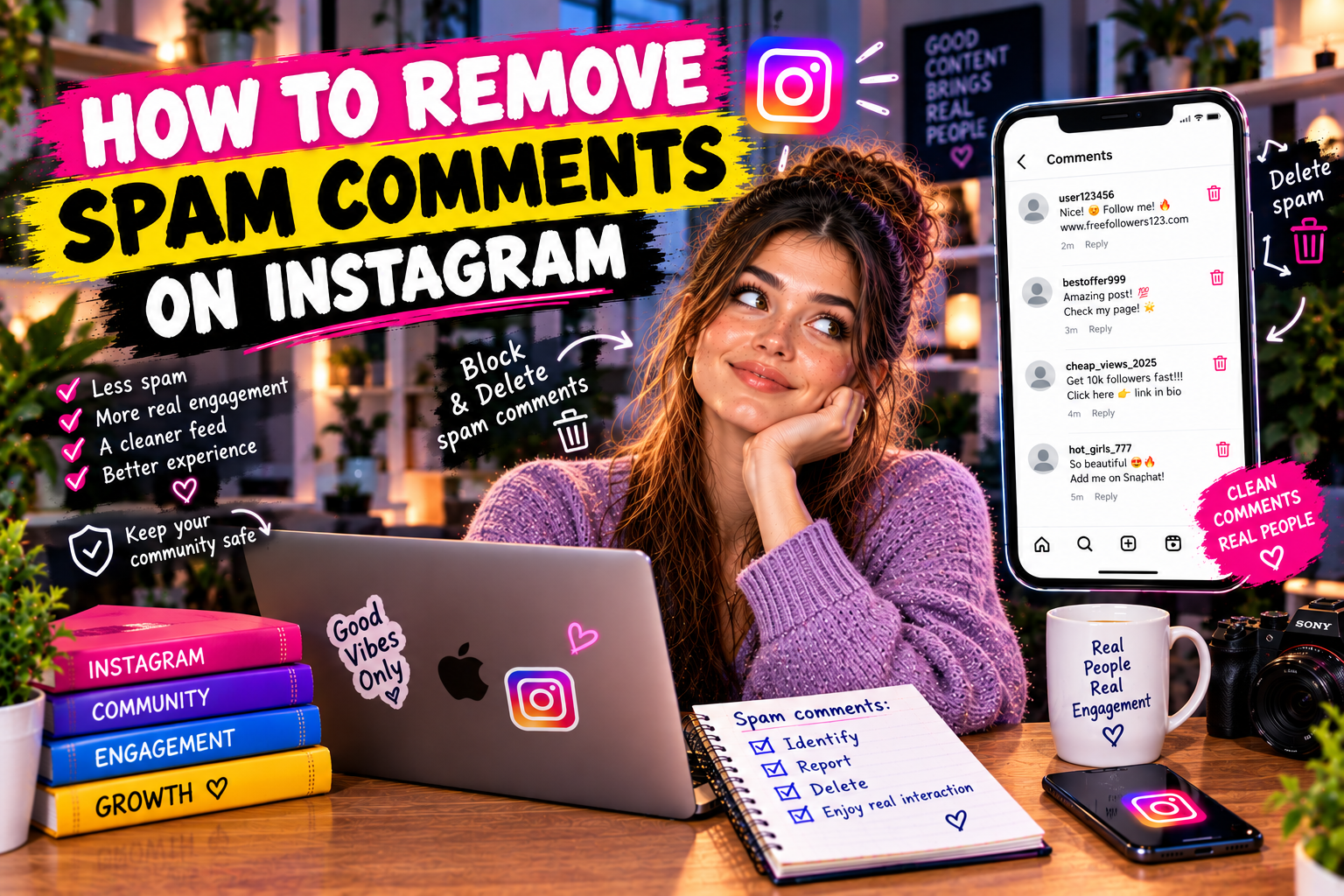
Spam comments are one of the most persistent nuisances on Instagram — they clutter your posts, damage credibility, and in some cases promote scams or harmful content to your audience. Here is a complete guide to removing spam comments, preventing them, and automating the process.
Types of Spam Comments on Instagram
Not all unwanted comments are the same. Understanding the type helps choose the right solution:
• Emoji-only comment spam: rows of fire emojis, hands, or other characters — typically from bot accounts boosting fake engagement
• Follow-for-follow solicitations: "Follow me and I'll follow back" or variations
• Promotional comments: "Check out my page", "DM me for collab", links to third-party sites
• Scam comments: fake investment schemes, giveaway fraud ("You've been selected as a winner")
• Mass comment spam: the same comment appearing across multiple posts, often from the same account or cluster
• Negative or harassment comments: not technically spam but requiring the same removal process
Method 1: Manual Comment Deletion
For occasional spam on individual posts:
1. Open the post with the spam comment
2. Swipe left on the comment (iOS) or long-press (Android)
3. Tap the trash icon to delete, or the exclamation mark to report
On desktop (instagram.com): hover over the comment, click the three dots that appear, select Delete.
Limitation: purely manual, does not scale for accounts with high comment volume or persistent spam attacks.
Method 2: Bulk Comment Deletion
For removing multiple spam comments from one post at once:
4. Open the post
5. Tap the speech bubble icon to open comments
6. Tap and hold any comment to enter selection mode
7. Select all spam comments you want to remove
8. Tap the trash icon to delete all selected
You can delete up to 25 comments at once this way. More efficient than one-by-one, but still manual.
Method 3: Built-In Instagram Spam Filters
Instagram has native comment filtering, accessible in Settings:
Path: Profile → Menu → Settings → Privacy → Comments
Available filters:
• Hide offensive comments: Instagram's automatic detection of offensive language
• Manual filter: add specific words, phrases, or emoji that should be automatically hidden
• Restrict comments to: Followers, People you follow, or specific lists
• Block comments from: specific accounts
To add to the manual filter: go to Settings → Privacy → Comments → Manual filter, then add words like "follow back", "DM me", "check bio", common spam phrases in your niche.
Limitation: Instagram's automatic detection misses many spam types, and manual keyword lists require ongoing maintenance.
Method 4: Restricting Problematic Accounts
For accounts that repeatedly spam your comments, "Restrict" is more powerful than block:
To restrict: go to the account's profile → Menu (three dots) → Restrict
What Restrict does: their comments on your posts become visible only to them (they do not know they are restricted). You can choose to approve their comments before they become public. They cannot see when you are online.
Restriction is better than blocking for persistent spammers — blocking often leads them to create a new account and return.
Method 5: Automated Spam Protection
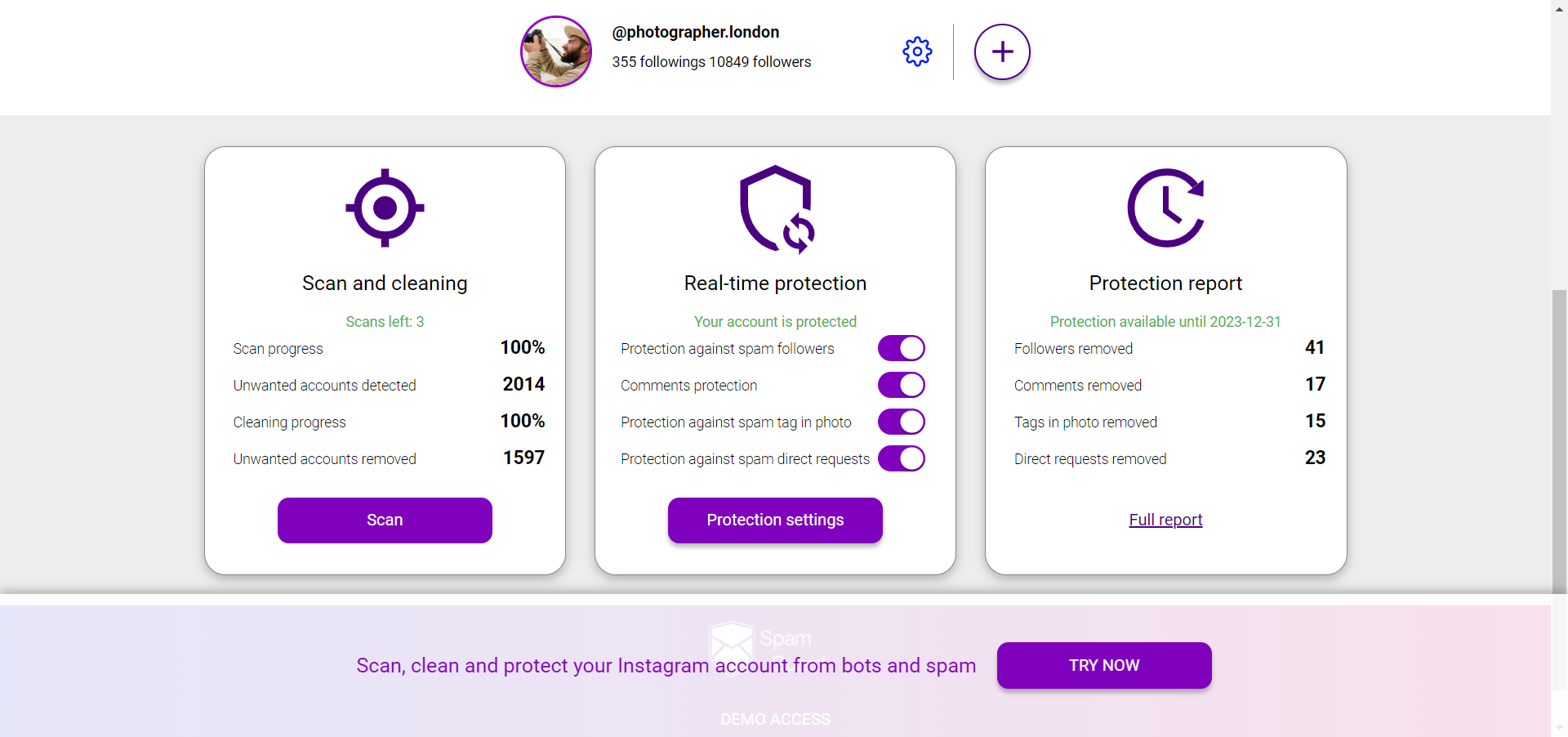
For high-volume accounts or persistent spam attacks, manual methods become unsustainable. SpamGuard monitors comments across all your posts and automatically removes spam based on configurable rules — keyword matching, account quality signals, and behavioral patterns. Set up automated comment protection with SpamGuard
What automated protection covers:
• Continuous monitoring across all posts, not just new ones
• Automatic removal as spam appears, not hours later when you check manually
• Pattern detection that catches spam variants even when exact phrases change
• Audit log of removed comments so you can review what was caught
Preventing Spam Comments Before They Appear
Removal is reactive. Prevention is better:
• Turn on Hidden Words: Settings → Privacy → Hidden Words → turn on Hide Comments. This proactively hides comments matching Instagram's spam patterns before they appear
• Limit who can comment: for accounts experiencing heavy spam, restricting comments to followers only dramatically reduces bot spam (bots typically do not follow before commenting)
• Close comments on older posts: spam disproportionately targets older posts because they rank in search. You can turn off commenting on specific posts via the post's Edit option
• Avoid certain hashtags: some hashtag categories attract disproportionate spam (certain motivational, beauty, and finance hashtags are known spam magnets)
What Not to Do
• Do not delete all comments immediately after posting: even spam removal can accidentally affect the engagement signals for your post in the first hour — focus on the most visible spam first
• Do not block every spam account: there are too many, and new ones are created constantly. Filters work better at scale than block lists
• Do not ignore spam: comments promoting scams or offensive content can harm your audience and damage your account's reputation
Automate spam comment removal across all your posts — SpamGuard